Azure Logic Apps Standard | Send Custom Events to Application Insights
Introduction
When building integration workflows with Azure Logic Apps Standard, there’s often a need to track custom business events that sit between pure technical telemetry and business process monitoring. Recently, while authoring a Logic App Standard workflow, I needed to track the total number of items processed along with a breakdown of successful versus failed processing attempts.
While Logic Apps provides excellent run history and built-in diagnostics, custom events allow you to capture specific business actions and metrics that align with your reporting requirements. In this post, I’ll show you how to send custom events directly to Azure Application Insights using the ingestion endpoint from the Application Insights connection string.
The Use Case
I needed to answer questions like:
- How many items were processed in total for a workflow run?
- What’s the success vs. failure rate for different item types?
- Can I correlate these metrics with other application telemetry?
Standard Logic Apps diagnostics don’t easily provide this level of custom business metric tracking, making Application Insights custom events the perfect solution.
Understanding the Application Insights Ingestion Endpoint
The Application Insights connection string contains several components, including the ingestion endpoint. It looks something like this:
InstrumentationKey=<key>;IngestionEndpoint=https://<region>.in.applicationinsights.azure.com/;LiveEndpoint=https://<region>.livediagnostics.monitor.azure.com/;ApplicationId=<ID>
// Broken Down
//------------
InstrumentationKey=<key>
IngestionEndpoint=https://<region>.in.applicationinsights.azure.com/
LiveEndpoint=https://<region>.livediagnostics.monitor.azure.com/
ApplicationId=<ID>
The Ingestion Endpoint component as the name suggests is used for the ingest of telemetry/metrics/events/etc. The component points to a regional Application Insights endpoint with the Instrumentation key supplied later in in the ingestion request for targeting your specific Application Insights instance.
The missing part to this endpoint that allows you to post your telemetry is a trailing v2/track. Combined this appears as follows:
https://<region>.in.applicationinsights.azure.com/v2/track
We’ll use the IngestionEndpoint combined with the InstrumentationKey to send custom events via HTTP requests.
Implementation
Step 1: Configure Application Insights Connection in Bicep
First, we need to extract the ingestion endpoint and instrumentation key from Application Insights and make them available to our Logic App as application settings:
resource applicationInsights 'Microsoft.Insights/components@2020-02-02' existing = {
  name: applicationInsightsName
}

resource logicAppDeployment 'Microsoft.Web/sites@2025-03-01' = {
  name: logicAppName
  location: Location
  kind: 'functionapp,workflowapp'
  properties: {
    ...
    siteConfig: {
      ...
      appSettings: [
        ...
        {
          name: 'appInsightsIngestUrl'
          value: '${split(filter(split(applicationInsights.properties.ConnectionString, ';'), val => contains(val, 'IngestionEndpoint='))[0], '=')[1]}v2/track'
        }
        {
          name: 'appInsightsKey'
          value: applicationInsights.properties.InstrumentationKey
        }
      ]
    }
  }
}
The Bicep code above parses the connection string to extract the ingestion endpoint and appends the required v2/track path. It also captures the instrumentation key needed to point to your instance.
Step 2: Create Logic App Parameters
Add parameters to your Logic App Workflow’s parameters.json file to reference these application settings:
{
    "AppInsightsIngestionUrl": {
        "type": "String",
        "value": "@appsetting('appInsightsIngestUrl')"
    },
    "AppInsightsKey": {
        "type": "String",
        "value": "@appsetting('appInsightsKey')"
    }
}
These parameters allow your workflow to access the ingestion URL and key at runtime.
Step 3: Add the Workflow Actions and Event Payload
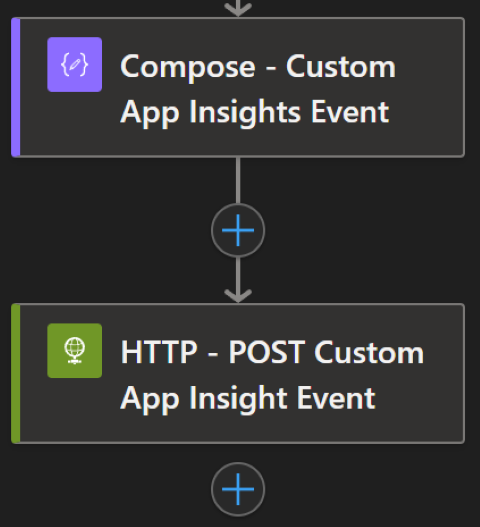
In your Logic App workflow, use a Compose action to build the Application Insights event payload. The payload follows the Application Insights telemetry schema:
{
  "name": "Microsoft.ApplicationInsights.@{parameters('AppInsightsKey')}.Event",
  "time": "@{utcNow()}",
  "iKey": "@{parameters('AppInsightsKey')}",
  "data": {
    "baseType": "EventData",
    "baseData": {
      "ver": "2",
      "name": "LogicAppWorkflowName",
      "properties": {
        "workflowRunId": "@{workflow().run.name}",
        "ItemsProcessed": "",
        "Type1Count":  "",
        "Type1CountFailures":  "",
        "Type2Count":  "",
        "Type2CountFailures":  "",
        "Type3Count":  "",
        "Type3CountFailures":  ""
      }
    }
  }
}
Key components of the payload:
- name: Event identifier following Application Insights naming convention
- time: Timestamp in UTC format
- iKey: Your instrumentation key
- data.baseData.name: The custom event name that will appear in Application Insights
- data.baseData.properties: Your custom properties containing business metrics
Step 4: Send the Event via HTTP
Add an HTTP action to send the composed payload to Application Insights:
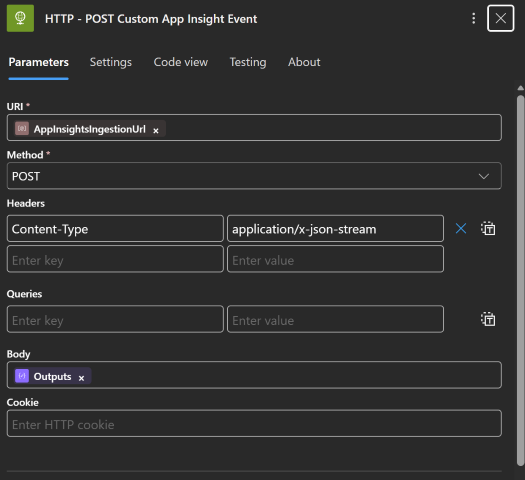
Configure the HTTP action with:
- Method: POST
- URI:
@{parameters('AppInsightsIngestionUrl')} - Headers:
Content-Type: application/json - Body: Output from the Compose action
The HTTP action will receive a 200 OK response when the event is successfully ingested.
The response body should indicate a successful ingestion as follows:
{
    "itemsReceived": 1,
    "itemsAccepted": 1,
    "errors": []
}
Step 5: Query Your Events
After your workflow runs, navigate to Application Insights and use the following KQL query to view your custom events:
customEvents
| where name == "LogicAppWorkflowName"
| project timestamp,
          workflowRunId = tostring(customDimensions.workflowRunId),
          itemsProcessed = toint(customDimensions.ItemsProcessed),
          type1Success = toint(customDimensions.Type1Count),
          type1Failures = toint(customDimensions.Type1CountFailures)
| order by timestamp desc
You can create custom dashboards, alerts, and reports based on these events.
Summary
By leveraging the Application Insights ingestion endpoint directly via HTTP actions, you can easily track custom business metrics from your Logic Apps Standard workflows without external dependencies. This approach lets you correlate workflow execution with wider integration components/applications and build comprehensive dashboards based on your specific use case.
Hope this helps, and keep Workflow-ing!
For the original version of this post see Andrew Wilson's personal blog at Azure Logic Apps Standard | Send Custom Events to Application Insights